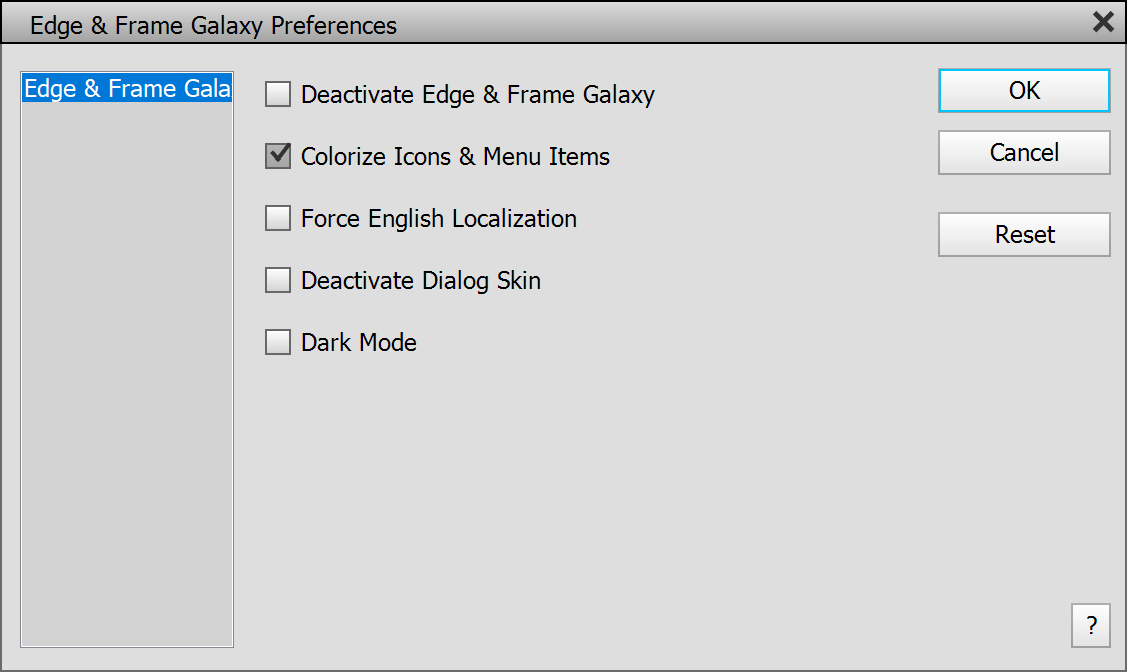
Edge & Frame Galaxy offers some general settings on a dialog that can be displayed from the Preferences sub menu of the Edit menu. You get the same dialog if you choose the Edge & Frame Galaxy menu item on the Automate or Automation Tools sub menu of the File menu.
Supported by Photoshop
CS2/CC and higher, by Photoshop Elements 11 and higher
Requirements: None
If you click on this menu item on the Preferences sub menu, a dialog window is opened that lets you change the settings of Edge & Frame Galaxy. To set all options to the original default values click the Reset button. Press OK to apply the changes on this dialog or Cancel to discard them.
The Deactivate Edge & Frame Galaxy check box lets you deactivate Edge & Frame Galaxy without installing it. You have to restart Photoshop (Elements) to make the deactivation work. To reactivate Edge & Frame Galaxy again please choose File > Automation Tools > Edge & Frame Galaxy from the menu.
When running Edge & Frame Galaxy for the first time, all menu items, icons and buttons of Edge & Frame Galaxy have a yellow background, so that you immediately see which features were added. To retain this highlighting activate the Colorize Icons & Menu Items check box. Once you know Edge & Frame Galaxy well enough, you can deactivate it again.
If you use a non-English version of Photoshop (Elements) and would like to see the menu items and dialogs of Edge & Frame Galaxy in English language, you can activate the Force English Localization check box. You have to restart Photoshop (Elements) for this feature to start or stop working. This feature can be helpful if you want to look up certain things in the English manual or if the localization to your language does not work perfectly.
The Deactivate Dialog Skin check box deactivates the skin that is applied to all dialogs and control of Edge & Frame Galaxy. This skin makes them look like the controls and dialogs of Photoshop (Elements). If you prefer the standard Windows look, you can activate this check box. You have to restart Photoshop (Elements) before it takes effect. We do not recommend activating this check box, because the dialogs were optimized for the dialog skin.
Activate the Dark Mode option to see all Edge & Frame Galaxy dialogs with a dark color scheme in Photoshop Elements. This has no effect on the UI and dialogs of Photoshop Elements itself. This option is not available in Photoshop, because it is already possible there to change the brightness of the UI and Edge & Frame Galaxy detects it.